Assigning the Dynamic Content Template to Menu Items
These topics discuss how to the dynamic content template to menu items. In this topic, menu item, page, and content reference are all synonymous terms.
In order for a page to display Context Manager template pagelets, the content reference must be use the dynamic content template (PTCXM_DYNAMIC_CON_TEMPLATE). This template displays the template pagelets in the Context Manager frame on the right side of the page.
Use the Structure and Content page (PORTAL_OBJ_LIST) to navigate the structure of the portal registry items to manage folders and perform content reference administration.
Navigation:
Portal Administration, Navigation, Structure and Content
PeopleTools, Portal, Structure and Content
Use the Content Ref Administration page (PORTAL_CREF_ADM) to maintain attributes of the content reference—in this instance, assign the dynamic content template (PTCXM_DYNAMIC_CON_TEMPLATE).
Navigation:
Navigate through the structure of the portal registry and click a content reference to be modified.
|
Page Name |
Definition Name |
Usage |
|---|---|---|
|
Structure and Content |
PORTAL_OBJ_LIST |
Navigate the structure of the portal registry items to manage folders and perform content reference administration. |
|
Content Ref Administration |
PORTAL_CREF_ADM |
Maintain attributes of the content reference—in this instance, assign the dynamic content template (PTCXM_DYNAMIC_CON_TEMPLATE). |
To assign the dynamic content template to menu items:
Select
The Structure and Content page is displayed.
Navigate through the portal registry folders to the folder containing the content reference to which you want to add the dynamic content template.
In the following example, the sample Context Manager Item page resides in the Portal Administration -> Test folder.
This example illustrates the fields and controls on the Structure and Content page.
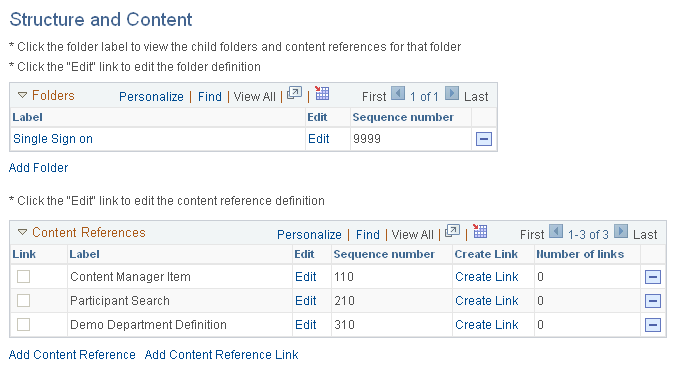
Click the Edit link to edit the content reference definition. The Content Ref Administration page is displayed.
In this example, Content Ref Administration page is displayed for the sample Context Manger Item page:
This example illustrates the fields and controls on the Content Ref Administration page (for the sample Context Manger Item page).
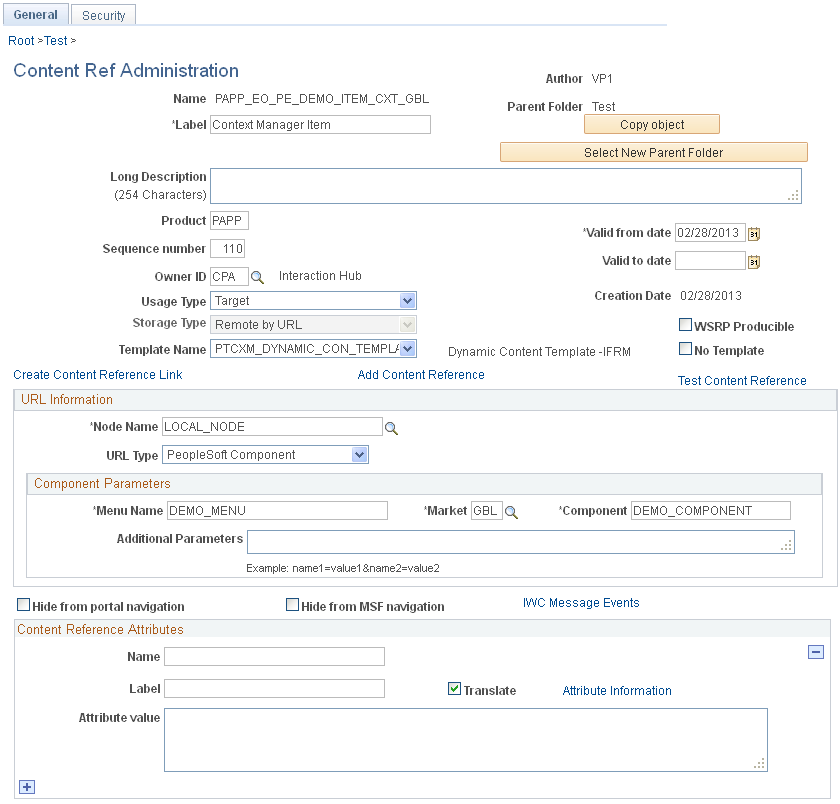
In the Template Name field, select the PTCXM_DYNAMIC_CON_TEMPLATE value.
Click Save.
Note: This assignment is site-specific. If the same content reference (CREF) appears in multiple sites, you must perform the assignment for each instance.
See the product documentation for PeopleTools: Portal Technology